
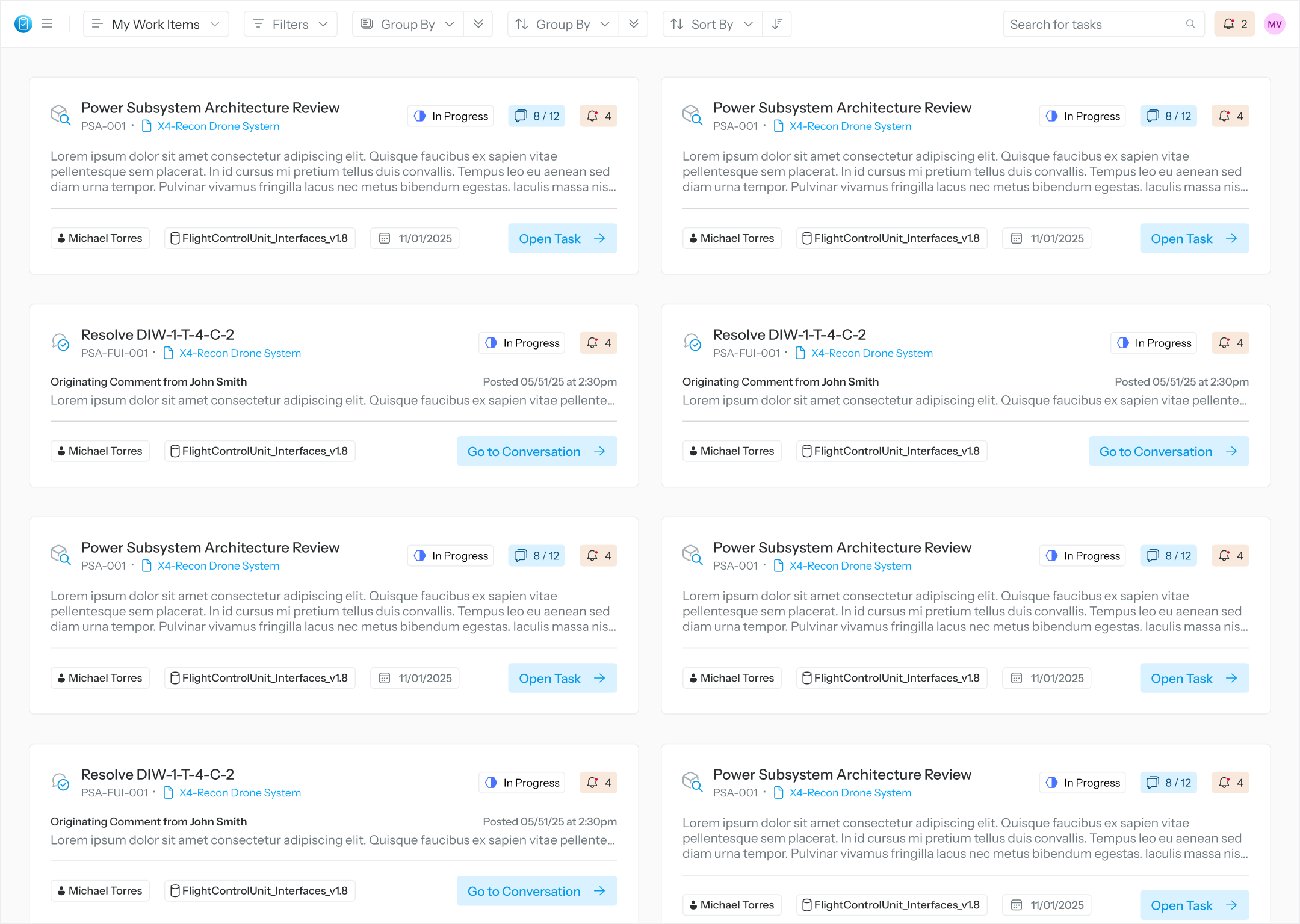
User’s Landing Page
When the user first logs in, they will see all tasks assigned to them along with any mentions from conversations. To start working on a task, select Open Task, Go to Conversation, Go to Mention.
How to Find Tasks
-
Search: Enter keywords related to task information
-
Views: A combination of filtering and sorting showing system default views provided by Sidekick and your saved views.
-
Default Views:
-
My Work Items: Default View
-
Mentioned: Shows users work items where they are mentioned in a
-
Favorites: Shows users work items they’ve added to Favorites
-
-
User Saved Views: Show’s a list (maximum of 10) of your saved views.
-
-
Filters: Adjust your view based on work item attributes
-
Tasks:
-
Task Name
-
Task State
-
Task List Due Date
-
Review Object
-
Assignee
-
-
-
Reviews:
-
Review Name
-
Review State
-
-
Favorites
-
-
Grouping: Adjust your view based on parentage
-
By Review: This shows work items in reviews you are actively working on within task lists
-
By Task List: This shows work items within task lists
-
By None: Default View, there is no hierarchy for tasks, and they are ordered by creation
-
-
Sort by: Adjust the order based on chronological or alphabetic order of certain attributes.
-
Created Date
-
Modified Date
-
Task List Due Date
-
Task Name
-
Task UID
-
Review Name
-
Review Locking Date
-
Review Closing Date
-
-
Save As: Save up to 10 views.
-
Reset: Reset current view, does not keep unsaved changes to filters, grouping, and sorting.
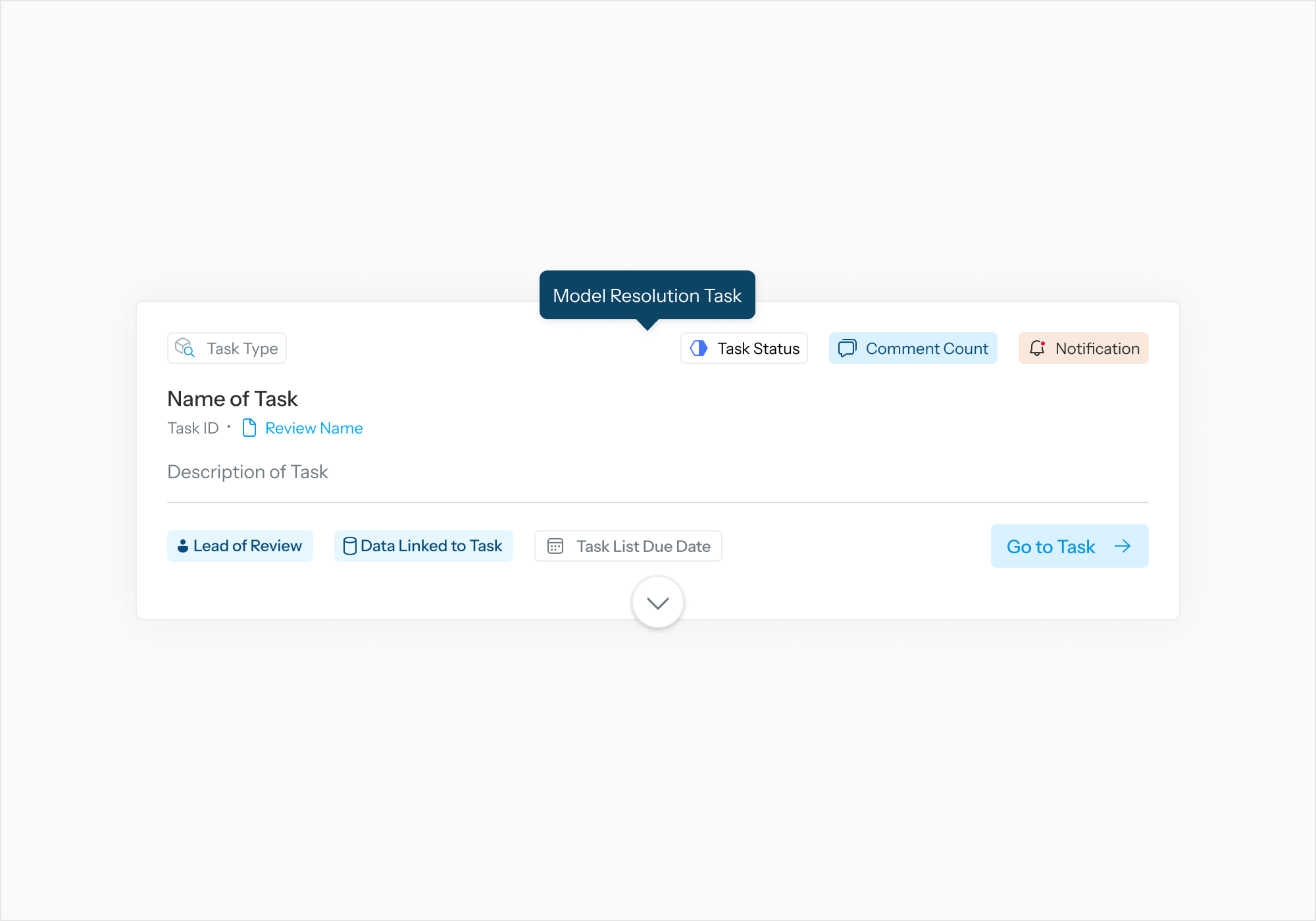
Model Resolution Task Card
-
Title: Name of Task – Displays the task name.
-
Task Type: Indicates the category or type of task
-
Task ID: Unique identifier for the task
-
Review Name (link): Clickable link to the associated review
-
Description: Description of the task
-
Badges
-
Task Status – Shows the current status of the task
-
Comment Count – Indicates the number of comments
-
Notification – Shows if there are notifications
-
Lead of Review – Displays the review lead
-
Data Linked to Task – Indicates associated data
-
Task List Due Date – Shows the due date for the task list
-
-
Go to Task: Action button to navigate to the task
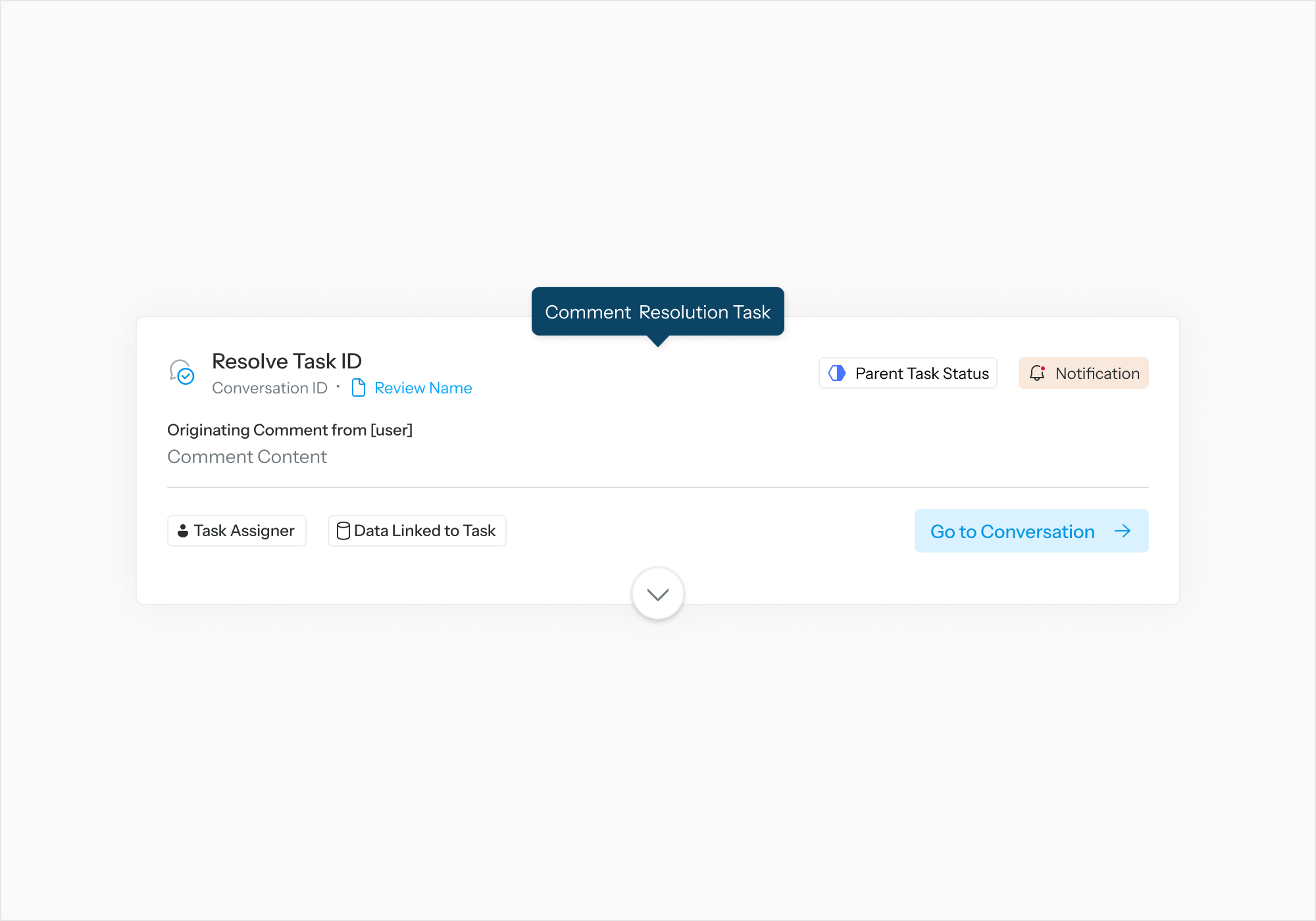
Comment Resolution Task Card
-
Title: Resolve Task ID – Indicates the parent task
-
Conversation ID: Unique identifier for the conversation linked to this task
-
Review Name (link): Clickable link to the associated review
-
Originating Comment: Displays the comment content, user who made the comment, and when the comment was authored
-
Badges
-
Parent Task Status – Shows the status of the parent task
-
Notification – Indicates if there are notifications related to this task
-
Task Assignee – Shows who assigned the task
-
Data Linked to a Task – Indicates associated data
-
-
Open Task: Action button to open the task
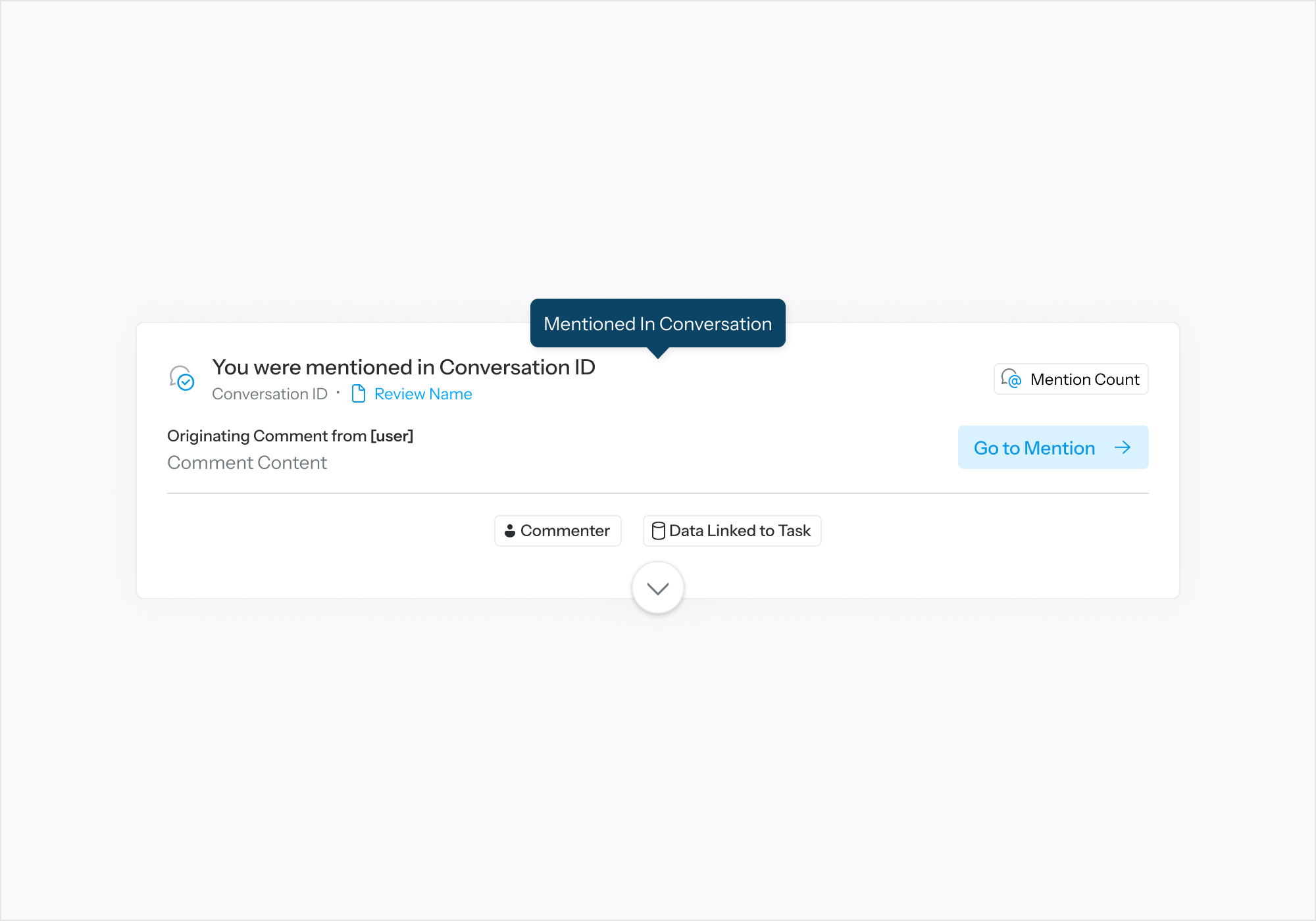
Mention Task Card
-
Title: Indicates a mention in a conversation
-
Conversation ID: Unique identifier for the conversation
-
Review Name (link): Clickable link to the associated review
-
Originating Comment: Displays the user who made the comment and the comment content
-
Badges
-
Mention Count – Shows how many times the user was mentioned
-
Commenter – Shows who made the comment
-
Data Linked to Task – Indicates associated data
-
-
Timestamp: Indicates when the mention occurred
-
Go to Mention: Action button to navigate to the mention