-
Connect to SQL Server
Open SSMS and connect to your SQL Server instance. -
Select the Database
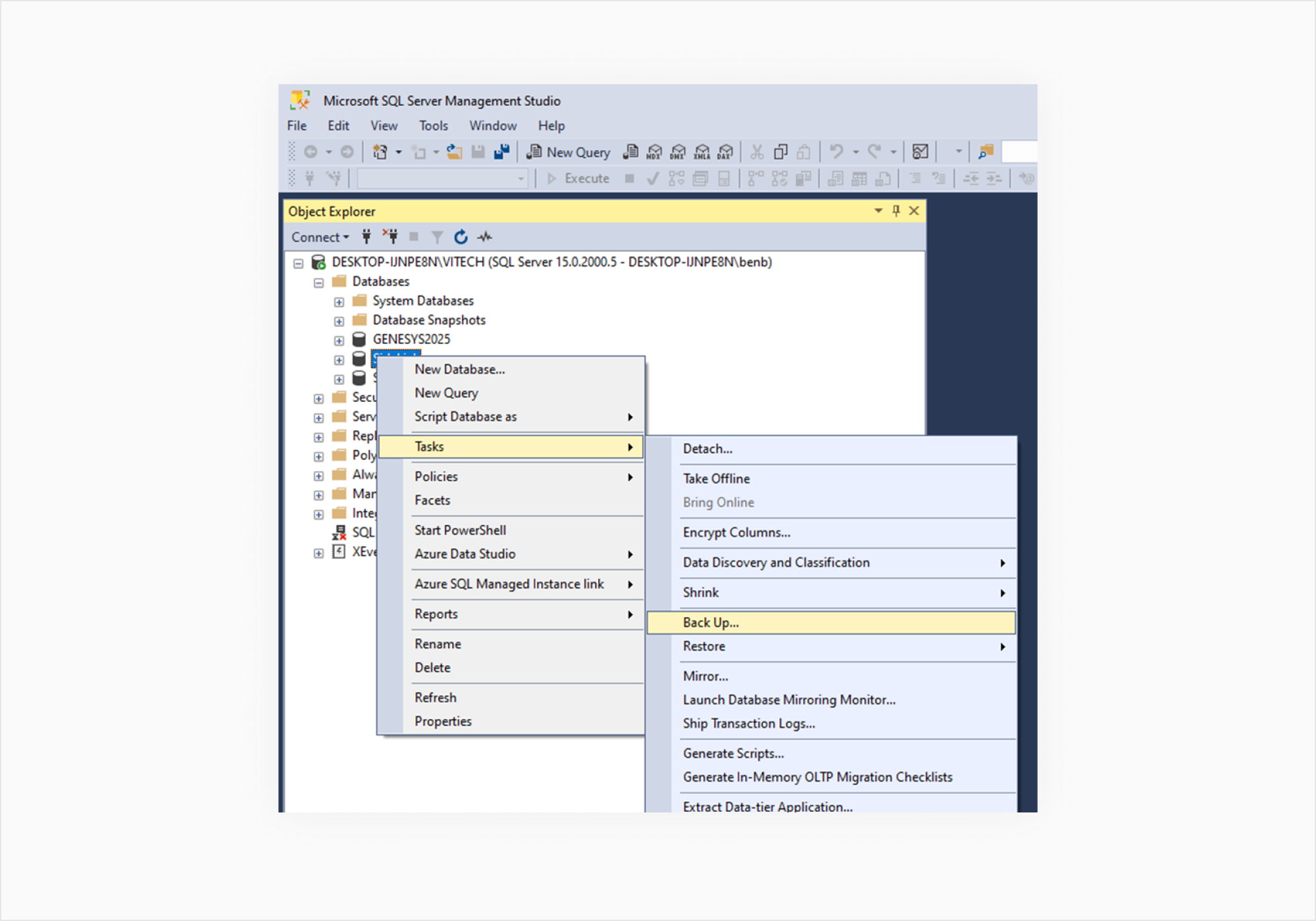
In the Object Explorer, expand the Databases node and right-click the Sidekick database. -
Initiate Backup
Choose Tasks > Back Up… from the context menu.
-
Configure Backup Settings
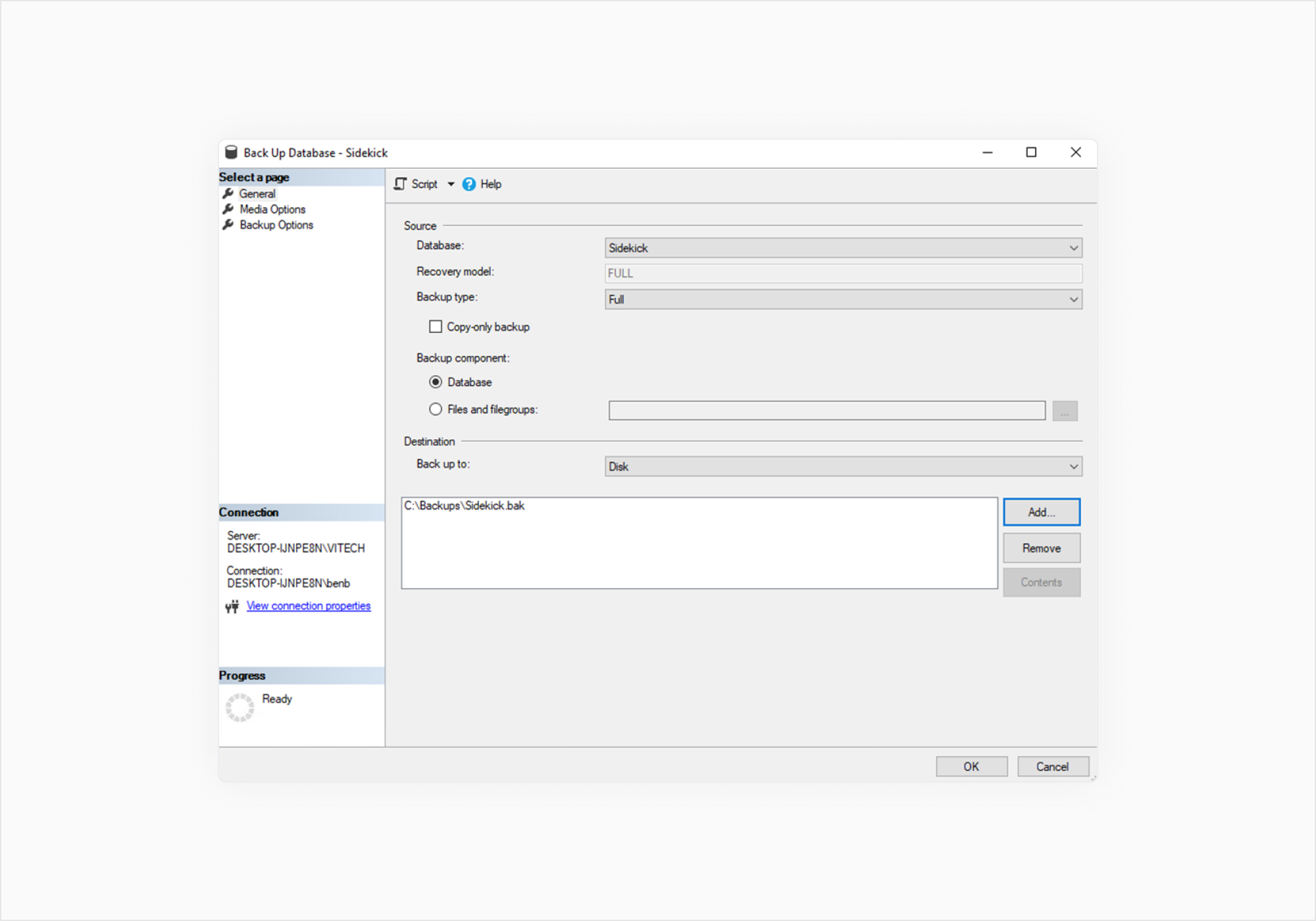
In the Back Up Database window: -
Database: Ensure the correct database is selected.
-
Backup type: Select Full for a complete backup.
-
Backup component: Choose Database.
-
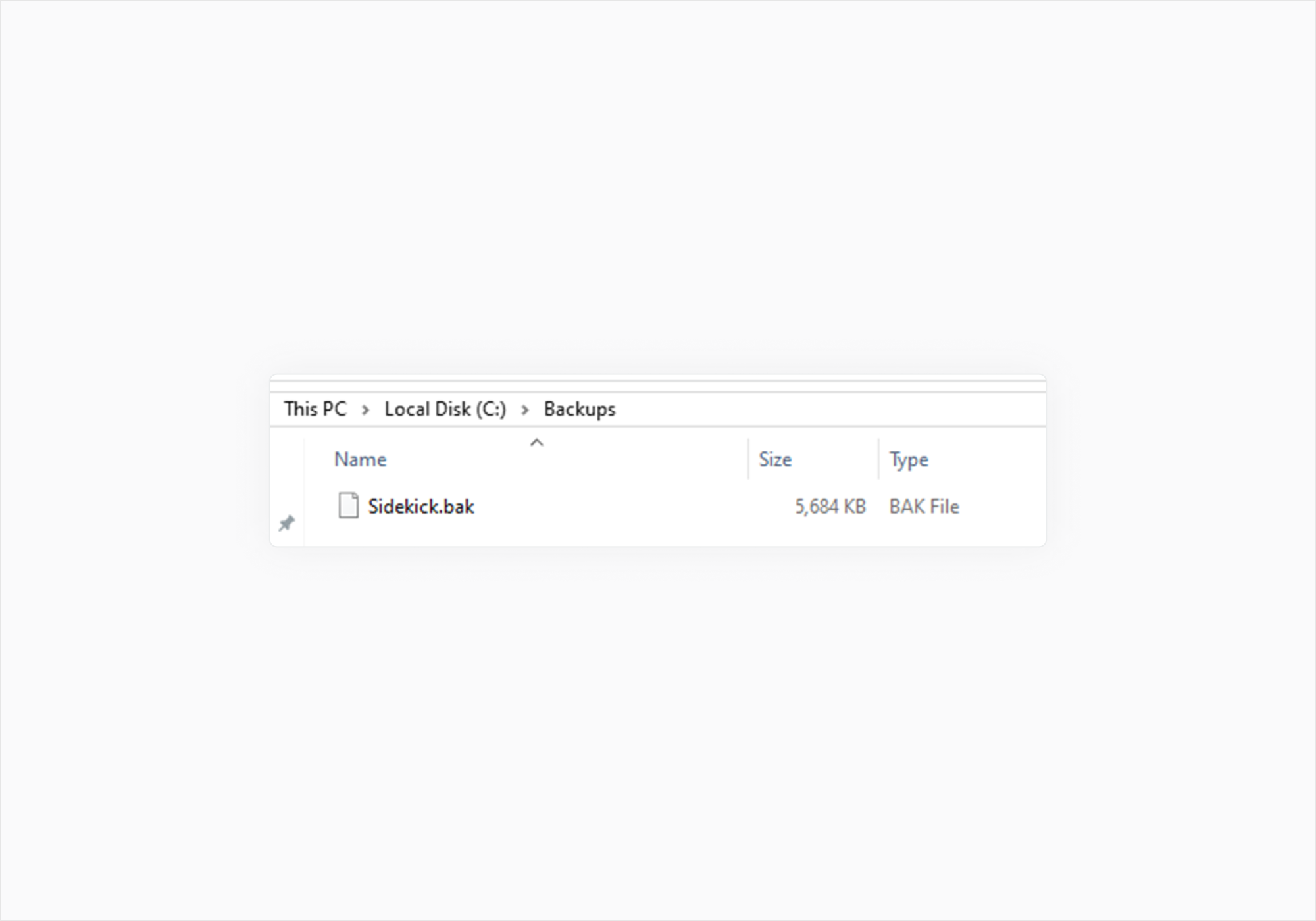
Destination: Click Remove to delete the default path, then click Add to specify a new location and filename for the backup file (e.g., C:\Backups\Sidekick.bak).
-
Start Backup
Click OK to begin the backup process. -
Repeat steps for Sidekick_Identity database
How to Restore a SQL Server Database Using SSMS
-
Connect to SQL Server
Open SSMS and connect to your SQL Server instance. -
Initiate Restore
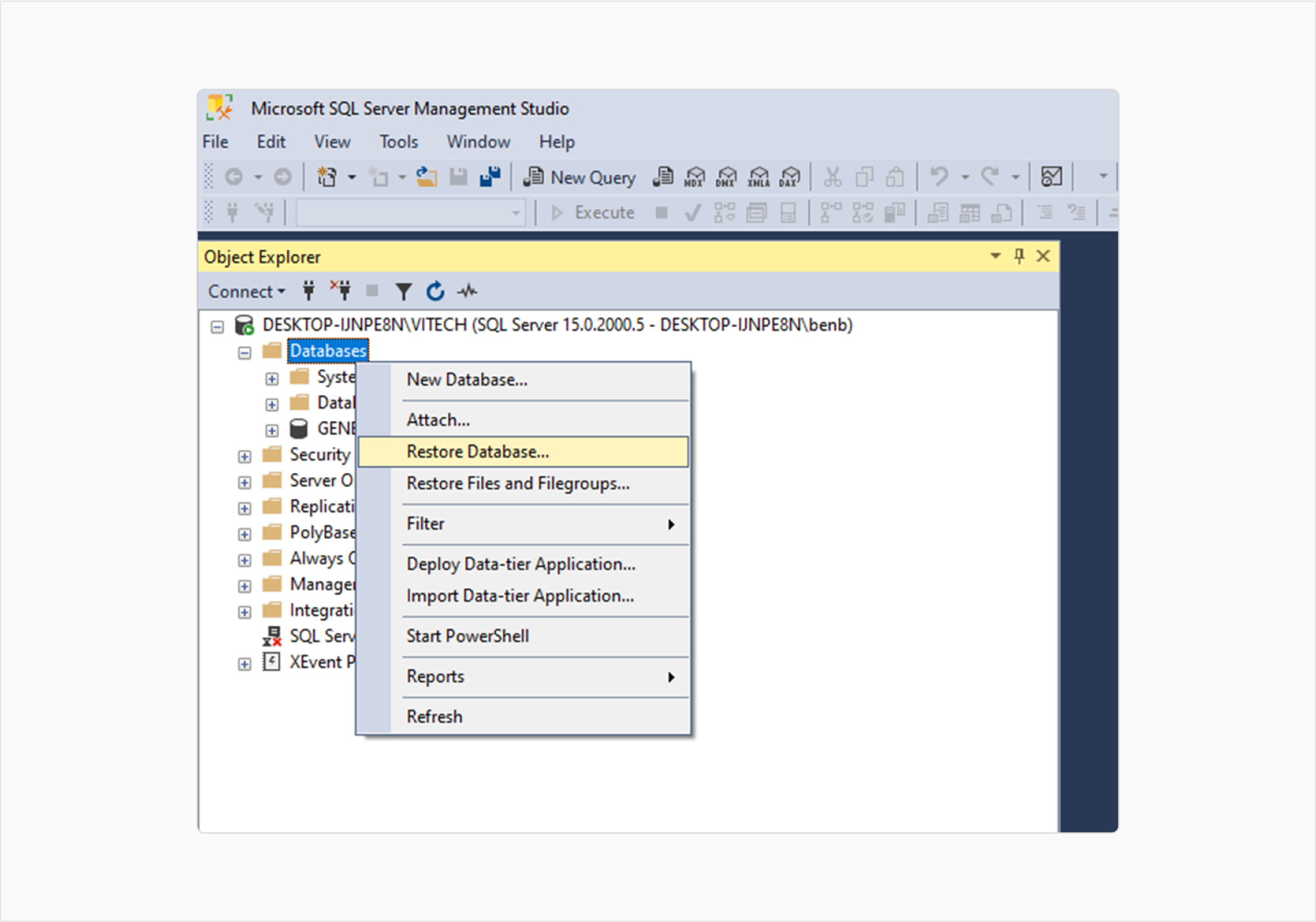
In the Object Explorer, right-click the Databases node and select Restore Database…. -
Select Backup File
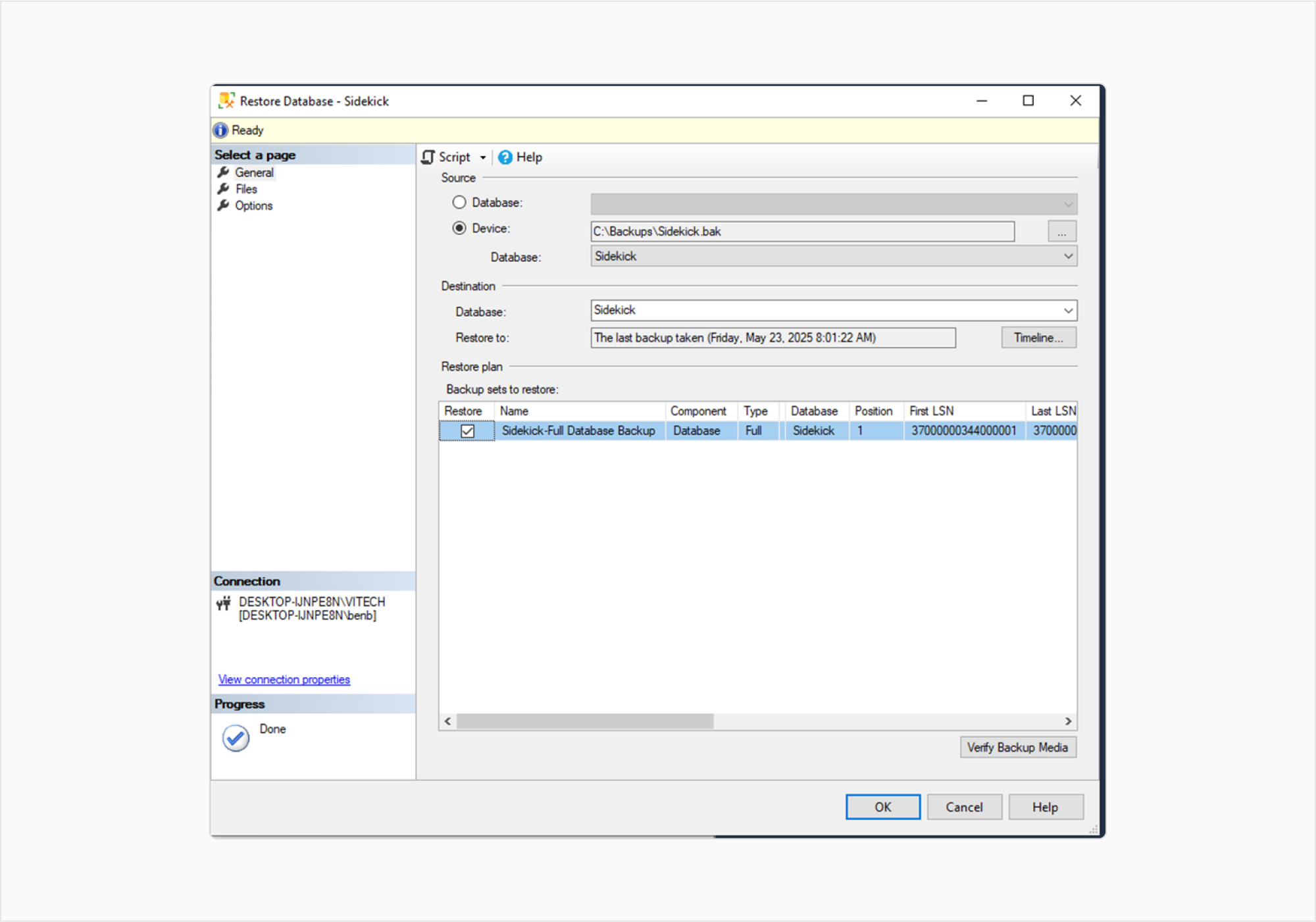
In the Restore Database window:-
Source: Choose Device and click the ellipsis (…) button.
-
Select backup devices: Click Add and browse to the location of your backup file (e.g., C:\Backups\Sidekick.bak).
-
-
Configure Restore Settings
Ensure the correct database is selected under Destination.
-
Start Restore
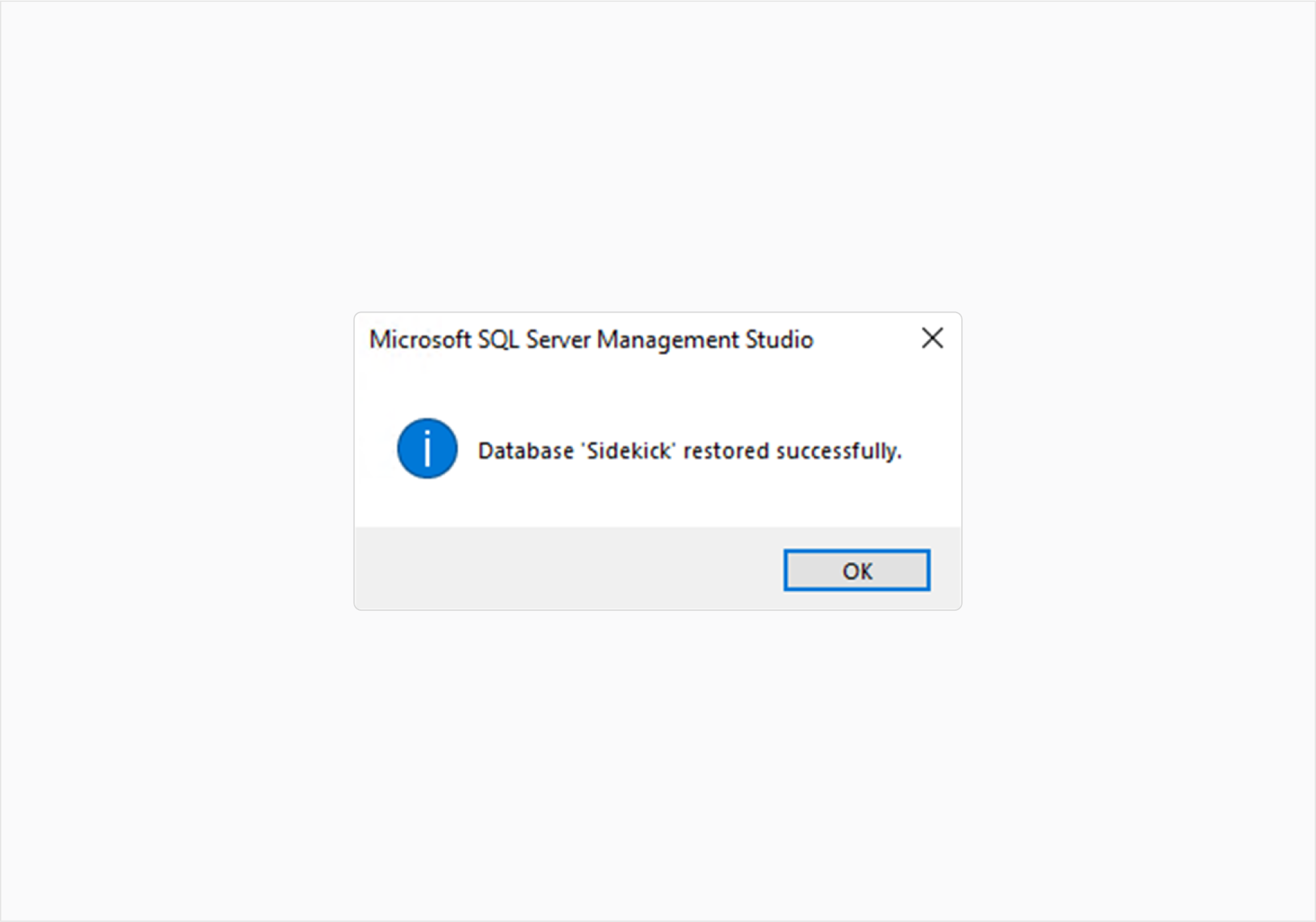
Click OK to begin the restore process.