
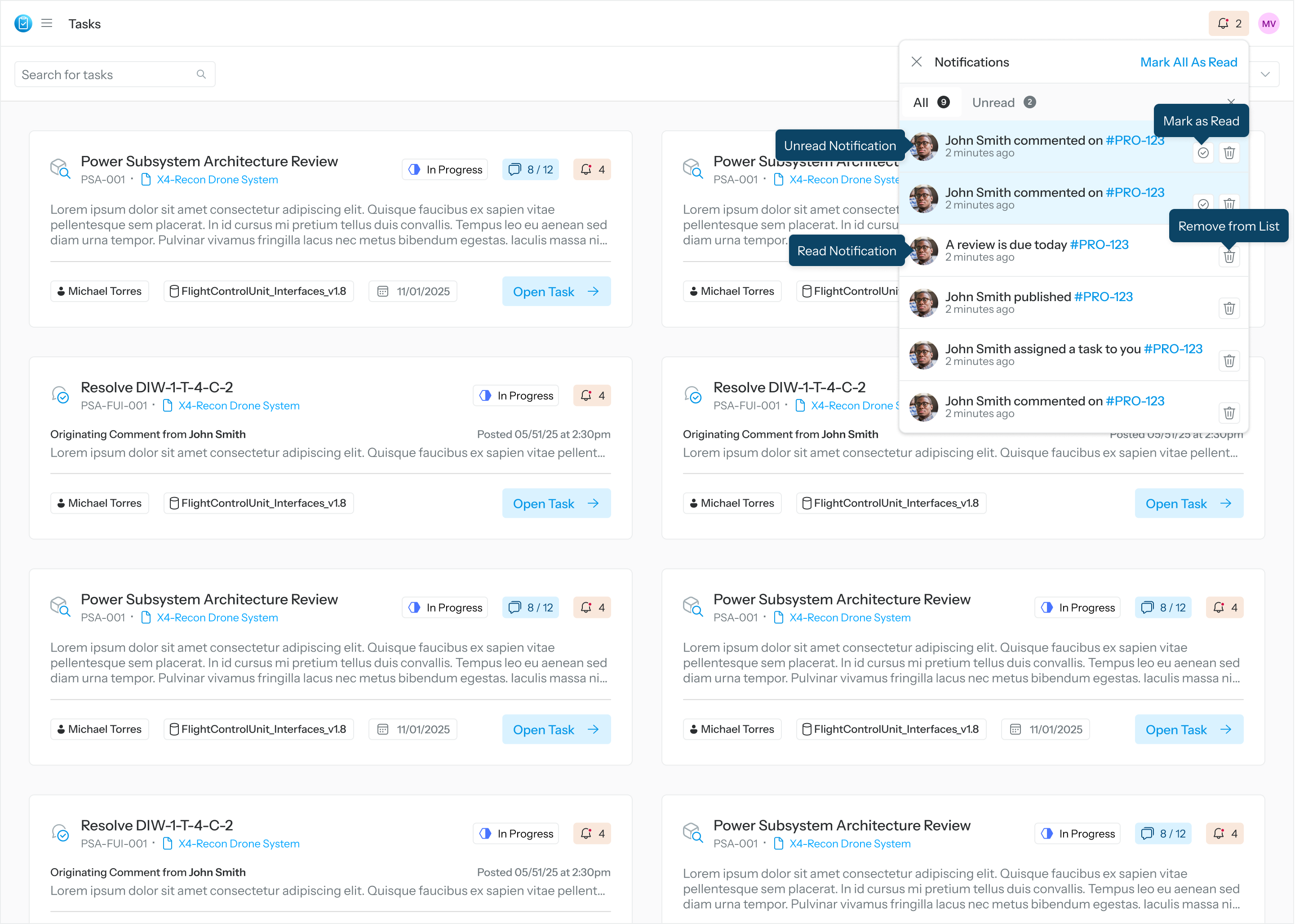
Notifications keep you informed about activity that requires your attention without interrupting your workflow. The Notifications panel opens from the notification icon in the top menu and displays recent system and task‑related updates in chronological order.
Notification panel actions and states
-
Unread Notification: Indicates a new notification that has not yet been viewed since the last time the Notifications panel was opened
-
Read Notification: Indicates a notification that has already been viewed. Notifications are automatically marked as read when the Notifications panel is opened. Navigating to the item (task execution page) will mark all related notifications as “Read.”
-
Mark as Read: Marks an individual notification as read without opening it
-
Mark All as Read: Marks all notifications in the list as read at once
-
Remove from List: Removes a notification from your notifications list without affecting the associated task or activity
-
Notification Tabs
-
All: Shows both read and unread notifications
-
Unread: Filters the list to show only notifications that have not yet been acknowledged
-
Notification types
-
Task Assignment: Notifies you when a task has been assigned to you
-
Comments and Mentions: Alerts you when someone comments on a task you are involved with or mentions you in a comment
-
Task Published or Updated: Indicates when a task is published or when key task details change
-
Review‑Related Notifications: Alerts you to status changes or actions taken within a review that you are part of